
 Menu
Menu
Edcast Winamp Plugin How-to Tutorial - Icecast or Shoutcast
Step 1 - Install Winamp
Download and install Winamp (if you don’t already have it installed). Winamp is a free download.
Link - Click to Download Winamp
Step 2 - Install the Edcast DSP Plugin and lame_enc.dll
Download the Edcast Plugin for Winamp and install it. This is a free plugin for Winamp that lets you stream out to the Internet.
Link - Click to Download Edcast Winamp Plugin
Download the LAME MP3 encoding plugin (lame_enc.dll) and place it into your Winamp folder. Do this by right clicking the link and choosing “Save Link As…”, then navigate into ‘C:\ Program Files (x86) \ Winamp’ before clicking the Save button.
Link - Right Click and choose “Save Link As…” to Download lame_enc.dll
Step 3 - Start Winamp and the Edcast DSP Plugin
- Start Winamp
- Press Ctrl - P (Ctrl and P keys together) - This will open the settings page.
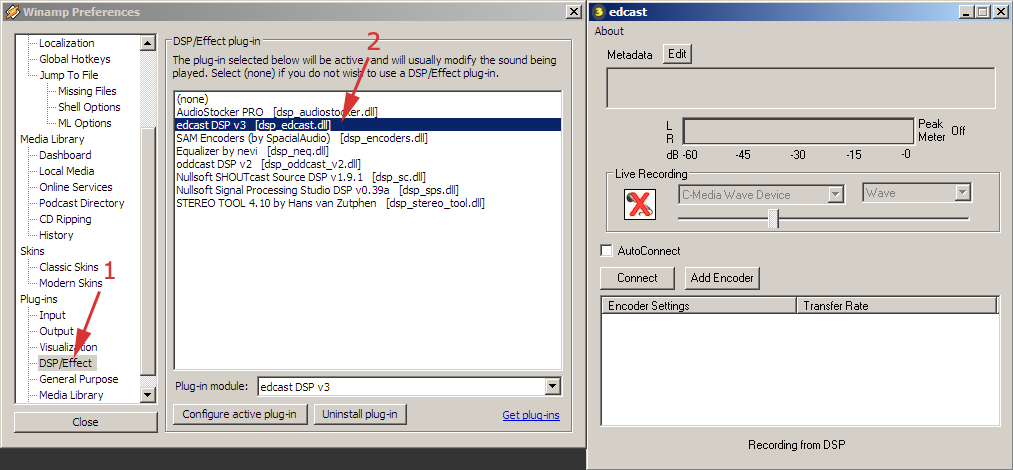
- (1) Click ‘DSP/Effect’ on the left column - you may need to scroll down.
- (2) Select ‘edcast DSP v3’ - a window called ‘edcast’ will appear.
Step 4 - Set up the encoder
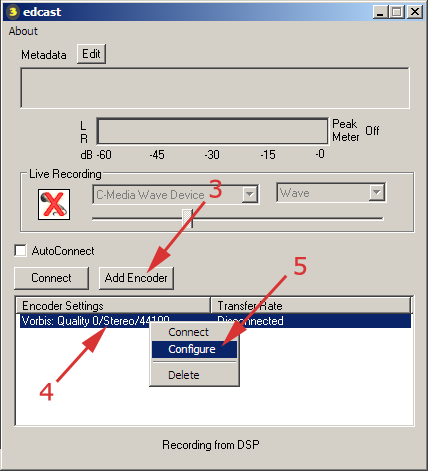
- (3) Click the ‘Add Encoder’ button
- (4) Right-click the new encoder that appears below it
- (5) Choose ‘Configure’ from the menu that appears
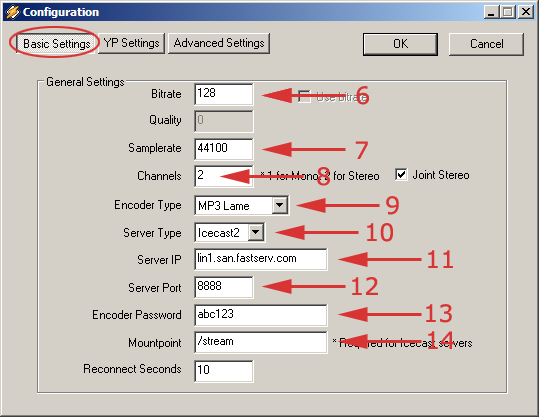
In the ‘Basic Settings’ section, set up the encoder.
- (6) Enter your chosen bitrate - this must be equal or lower than the rate you purchased.
- (7) Enter your samplerate - Enter 44100 for bitrates above 96, or 22050 for streams below 96.
- (8) Number of channels - Enter 2 for bitrates above 48, choose 1 for bitrates below 48.
- (9) Select the ‘MP3 Lame’ encoder
- (10) Select ‘Icecast2’ for Icecast server, or ‘Shoutcast’ for Shoutcast server.
- (11) Enter the host name of your server.
- (12) Enter the port number of your server.
- (13) Enter the DJ or Admin password of your server.
- (14) (Icecast2 only) Enter the mount point - this will usually be /stream by default for Fast Serv Icecast2 servers.
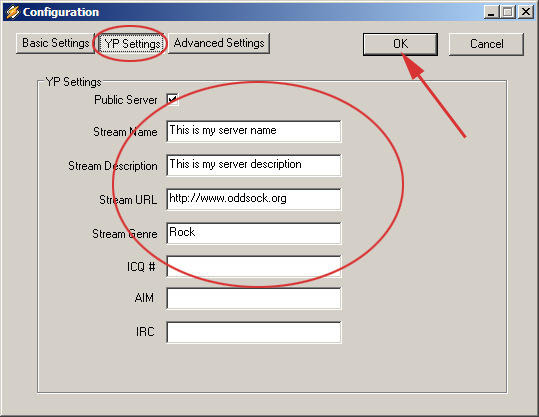
- In the ‘YP Settings’ section, enter your station details.
- Click ‘OK’
Step 5 - Start encoding
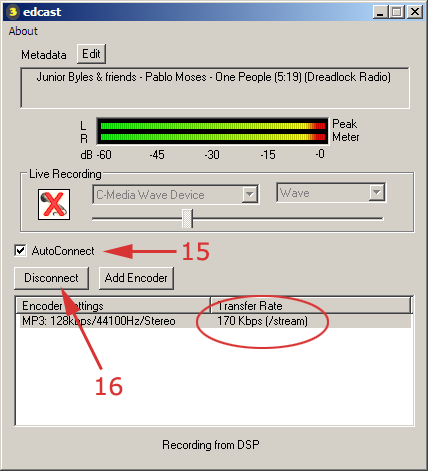
- (15) Tick the ‘AutoReconnect’ box
- (16) Hilite the new encoder, then click the ‘Connect’ button
- You should see information about the encoder status in the ‘Transfer Rate’ column. If it’s working properly, a numeric value will appear indicating the transmission speed.
Notes
- If you are unable to connect, go back to step 4 and double check every server setting. You must also make sure there is music playing in Winamp.
- You can also stream audio directly from your sound card input (or other audio device on your PC). Click the box with an ‘X’ in it under ‘Live Recording’. You can then select the audio device you wish to capture audio from.
You’re now streaming live on the Internet!
Share the Love
Back to Streaming Media